
Document Analysis and Structured Data Extraction
A document workflow that pulls the fields you need from quotes, contracts, order forms and similar documents into a spreadsheet or your own system — and flags anything it is unsure about for a person to check.
The problem
The information is in the document, waiting for someone to retype it
Supplier quotes, order forms and contracts arrive every day in different layouts. Someone has to read each one and re-enter the dates, amounts, parties, line items and special terms into a spreadsheet or system. It is slow, and when attention slips a figure gets mistyped or an important clause is missed.
- The same information sits in a different place in every document
- Manual data entry is slow and error-prone
- Important terms get missed in long contracts
- Comparing documents side by side is hard
The solution
A document comes in, the fields fill themselves, anything doubtful is flagged
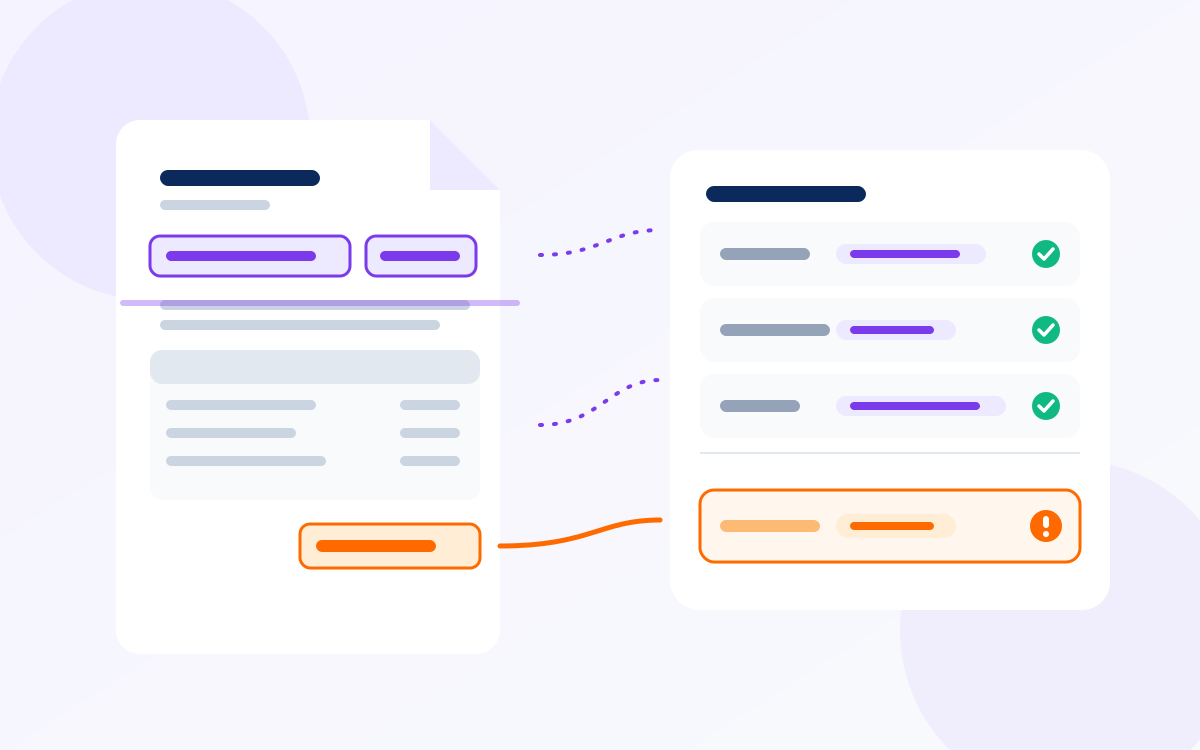
Together we define which fields to extract for each document type — for a quote, say, supplier, validity date, line items and total. The assistant reads each incoming document, fills in those fields and shows where in the document each value came from. Fields it is unsure about, can't read or that break a rule are clearly flagged, and nothing flagged is passed on without approval. Checks such as whether line items add up to the total are done with fixed rules, not with AI.
Possible benefits
- Far less retyping by hand
- The source of every field can be checked in one click
- Uncertain fields are flagged, never passed through silently
- Documents in different layouts can be compared in one table
How it works
- 01Your team
Document types and fields are defined
For each document type you decide what to extract and in what format.
- 02Customer
A document is uploaded or arrives by email
PDF, Word or a scan containing text.
- 03AI
The assistant extracts the fields
Each field is filled with a pointer to where it appears; uncertain values are flagged.
- 04System
Rule checks run
Date formats, totals and required fields are checked with fixed rules.
- 05Your team
Flagged fields are reviewed and approved
Approved records go to the spreadsheet or system you use.
Example: the purchasing team at a logistics company
Each week the team receives quotes from different suppliers in different formats. The assistant pulls the supplier name, validity date, line-item prices and payment terms from every quote into one comparison table. On one quote the total doesn't match the sum of the lines, so the row is flagged in red; the buyer opens the document, sees the difference is a delivery charge, corrects it and approves.
What it needs
Information required
- A few real examples of each document type (for setup and testing, with personal data masked)
- The list of fields to extract and their formats
- Check rules: required fields, consistency of amounts and dates
Systems to connect
- Where documents arrive: an inbox, an upload screen or a shared folder
- Where results go: a spreadsheet, ERP, accounting or purchasing system (connected during setup)
- Text recognition (OCR) for scanned documents — assessed against your document quality
Where a person approves
The assistant prepares the data; it does not write to your systems itself. Every flagged field and every record containing an amount is approved by a person. Legal interpretation of contract terms is never left to the assistant.
Security and privacy
- Documents are processed only for as long as the task requires; retention rules are agreed in advance
- For documents containing personal data, only the necessary fields are extracted
- Instructions written inside documents are not treated as commands; content is handled as untrusted data
- The source of each extracted field and the person who approved it are logged
What it does not do
- Accuracy drops on poor scans, handwriting and very low-resolution documents
- It does not guess information that isn't in the document; it leaves the field empty and flags it
- It does not give legal, financial or technical interpretations; it extracts only what is written
- Adding a new document type means defining its fields and testing again
Which documents do you process by hand every day?
Let's start with a few sample documents and see together which fields can be extracted reliably and which should always stay under human review.
Related services
This is an example scenario, not a completed client project. Setup and results depend on your business data and the systems you use.